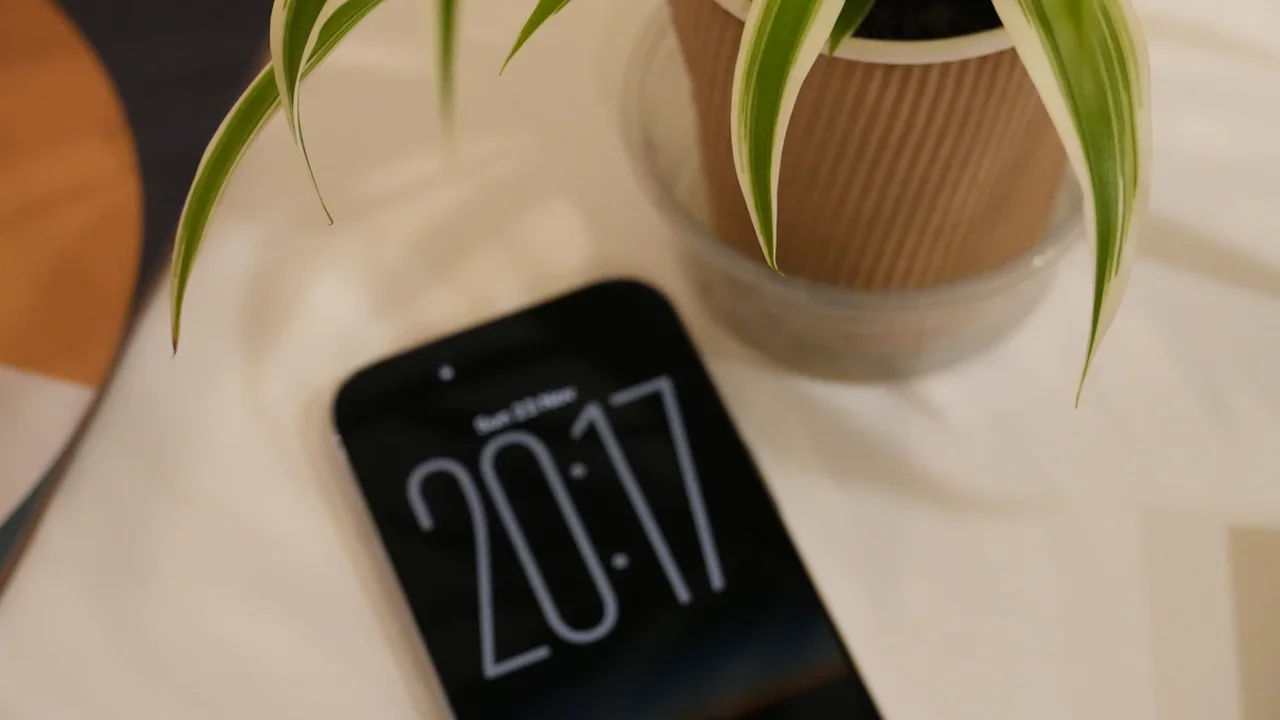
Your phone can stay useful without becoming the default place your attention goes. This seven-day reset reduces interruptions through notification triage, Focus modes, a simpler home screen, app limits and planned checking windows. It is designed to adapt around work calls, caregiving responsibilities and accessibility needs—not to make you delete every app.
Start with a 10-minute notification audit
Notifications are often the fastest way an app turns a brief moment into an unplanned session. Begin by looking at every recent alert and deciding whether it needed to interrupt you at that exact moment.
Keep notifications that are genuinely time-sensitive, such as:
- Calls or messages from key family, caregiving or work contacts
- Calendar reminders for appointments, shifts or medication routines
- Security alerts, delivery changes or two-factor authentication codes
- Accessibility alerts and safety-related services you rely on
Silence or reduce alerts that can wait, including social reactions, retail promotions, game prompts, news-topic nudges and most “someone posted” updates. You can still see them when you choose to open the app.
On iPhone, open Settings > Notifications and review each app’s alert style, sounds and badges. Scheduled Summary can group non-urgent notifications for delivery at selected times. On Android, open Settings > Notifications > App notifications; the exact wording varies by manufacturer, but you can usually turn off an app entirely or adjust individual notification categories.
The goal is not a perfectly empty notification screen. It is a screen where every interruption has earned its place.
Day 1: Separate urgent people from noisy apps
Make a short list of people whose calls or messages should reach you quickly. For many people, this list is small: a partner, children, a care team, a manager during a shift, or a close family member.
Then decide what “urgent” means for you. A message may be important without requiring an immediate alert. If someone truly needs you in an emergency, a call or repeated call can remain available while other app alerts stay quiet.
Set a fallback for real emergencies
If you use an iPhone, Focus settings can allow calls from selected people and permit repeated calls. On Android, Do Not Disturb can allow chosen people, conversations, alarms or other exceptions. Test these settings by asking a trusted person to call or message you before relying on them.
This matters most for caregivers, on-call workers and people who use a phone as an accessibility tool. A distraction reset should lower unnecessary demand, not block support.
Day 2: Build Focus modes around your actual day
Focus modes work best when they match situations rather than an idealized routine. Try creating separate settings for work, rest, sleep, travel or family time.
On iPhone, go to Settings > Focus to create or edit a Focus. Choose the people and apps allowed to notify you, then add a schedule based on time, location or an app. You can also link a specific Lock Screen or Home Screen to that mode.
On Android, Digital Wellbeing settings commonly include Focus mode, which can pause selected distracting apps during chosen periods. Do Not Disturb handles exceptions for calls, alarms and important contacts. Check your device’s settings search if menu names differ.
Start with one modest block, such as 9:30 a.m. to noon on workdays or the first hour after dinner. A setting you can maintain is more useful than a strict plan you abandon after two days.
Day 3: Make the home screen less persuasive
Your home screen is a cue. If the first page is full of bright social, shopping and video icons, reaching for a calendar or camera can become an accidental scroll.
Move high-distraction apps off the first page and put practical tools in their place. Useful first-page choices may include maps, calendar, camera, messages, notes, banking, transit or a reading app.
Try this simple layout:
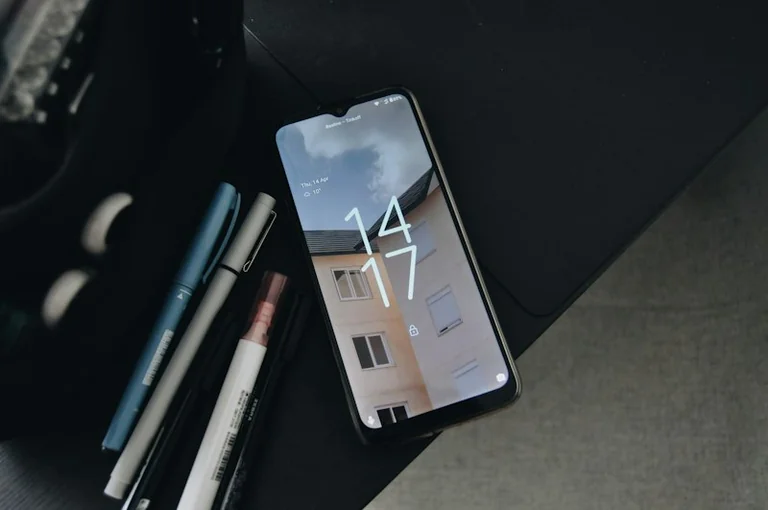
- First screen: essential tools and a small widget for calendar or reminders
- Second screen: communication and work apps
- App Library or app drawer: social media, games, shopping and streaming
- Dock: only the apps you need most often for intentional tasks
Turning off notification badges for non-essential apps can help too. A red number is designed to suggest unfinished business; if it does not represent something urgent, you do not need to see it every time you unlock your phone.
Day 4: Add limits that create a pause
Time limits are not a test of willpower. They create a moment to choose whether you still want to continue.
On iPhone, Settings > Screen Time > App Limits lets you set daily limits by app or category. You can also use Downtime to restrict selected apps during particular hours.
On Android, Digital Wellbeing often offers an App timer for individual apps. Focus mode can temporarily pause chosen apps, while Bedtime mode can reduce visual stimulation at night.
Choose one or two apps that most often absorb more time than intended. Set a limit that is realistic, not punitive. If you usually spend an hour on short videos, begin with 45 minutes rather than five.
When the limit appears, ask one question: “Did I open this for a purpose?” If yes, continue deliberately. If not, close it and return to the task you meant to do.
Day 5: Use intentional checking windows
A phone becomes less distracting when checking it is a decision rather than a reflex. Pick a few windows for non-urgent email, social feeds, news and shopping.
For example, you might check these apps:
- Once in the late morning
- Once after lunch
- Once in the early evening
The schedule does not need to be rigid. Someone coordinating care, responding to customers or waiting for school updates may need more frequent access. The point is to replace constant partial checking with a pattern that fits your responsibilities.
If a task requires concentration, put the phone out of reach or face down before starting. Physical distance adds a useful extra step between an impulse and an unlock.
Day 6: Protect your rest without losing access
Night-time settings should support sleep and recovery while preserving what you may need. Set a bedtime Focus or Do Not Disturb schedule, then allow essential calls, alarms and accessibility functions.
Consider charging the phone across the room, on a dresser or outside the bedroom if that is practical. If it must remain beside you for caregiving, medical access or work, use a dimmer display, reduce non-essential alerts and place only essential shortcuts on the Lock Screen.
Avoid treating every evening notification as a problem to solve. A quiet mode is there to protect your time; messages that are not urgent can wait until your next planned check.
Day 7: Keep the settings that worked
At the end of the week, review your notification history, Screen Time or Digital Wellbeing dashboard. Look for one change that reduced interruptions and one place where your settings were too restrictive.
Keep the adjustments that made ordinary tasks easier. Relax the ones that caused missed information or made you anxious. The best phone setup is not the most minimal one; it is the one that lets you stay reachable for what matters while making casual distraction less automatic.
Apple’s Screen Time, Focus and notification controls, along with Android’s Digital Wellbeing and Do Not Disturb tools, are built to be adjusted over time. Revisit your setup after a new job, family change, school term or caregiving shift, because your definition of “important” may change with it.
Source: Editorial research
Context & actions About this article
Source check How this guide works
This guide uses built-in iPhone and Android attention-management settings and encourages readers to adapt them to work, caregiving and accessibility needs.
- Review each app’s notification categories before switching alerts off.
- Test emergency-call and key-contact exceptions with someone you trust.
- Check Screen Time or Digital Wellbeing data after seven days.
- Adjust limits when work, family or accessibility needs change.
- Scope
- International
- Updated
- 2026-09-13 13:20
Source check
Report a trust issue
Send a clear signal to community moderation if the source, facts or context need review.




Comments